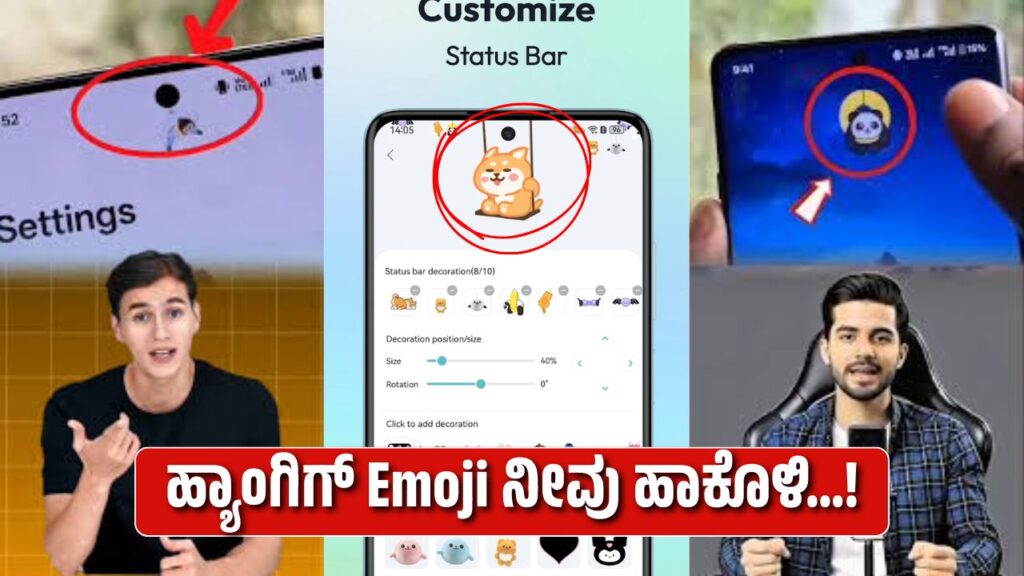
The MICO app is a popular live chat and social networking platform where users communicate through text, voice, and emojis. Many Android users prefer using the microphone (voice typing) feature instead of typing manually, especially during live chats. If you want to add emojis—commonly referred to by users as “hanging emojis”—you can do so through the mic feature with the help of your Android keyboard.
Understanding How Voice Typing Works in MICO
The MICO app itself does not have a separate voice-to-emoji system. Instead, it depends on your Android keyboard, such as Gboard or Samsung Keyboard. When voice typing is enabled, the keyboard converts your spoken words into text and emojis based on recognized commands.
This means the emoji insertion depends on how clearly you speak and whether the keyboard supports spoken emoji names.
Step-by-Step Guide to Add Emoji Using Mic in MICO
First, open the MICO app on your Android phone and go to any chat or comment section. Tap on the message input box so that your keyboard appears on the screen.
Now, look for the microphone icon on your keyboard. Tap on it to enable voice typing. Once the mic is active, speak clearly and slowly. To insert an emoji, say the word “emoji” followed by the emoji description. For example, you can say phrases like “emoji rope”, “emoji symbol”, or “emoji expression”. If the keyboard recognizes the command, it will automatically convert your voice into the related emoji.
After the emoji appears in the text field, stop the mic and send the message normally.
Important Settings to Check
Make sure Google Voice Typing is enabled in your Android settings. Go to Settings → System → Languages & Input → On-screen Keyboard → Gboard → Voice typing and ensure it is turned on. Also, keep your keyboard language set to English, as emoji voice recognition works best in English.
Tips for Better Emoji Recognition
Speak clearly without background noise. Avoid long sentences and use simple emoji names. Keep your Android system and keyboard updated to the latest version for better accuracy.
Final Words
Adding emojis through the mic in the MICO app is easy once your voice typing is set correctly. With proper pronunciation and the right keyboard settings, you can quickly insert emojis without manually opening the emoji panel. This method saves time and makes chatting smoother, especially during live conversations.